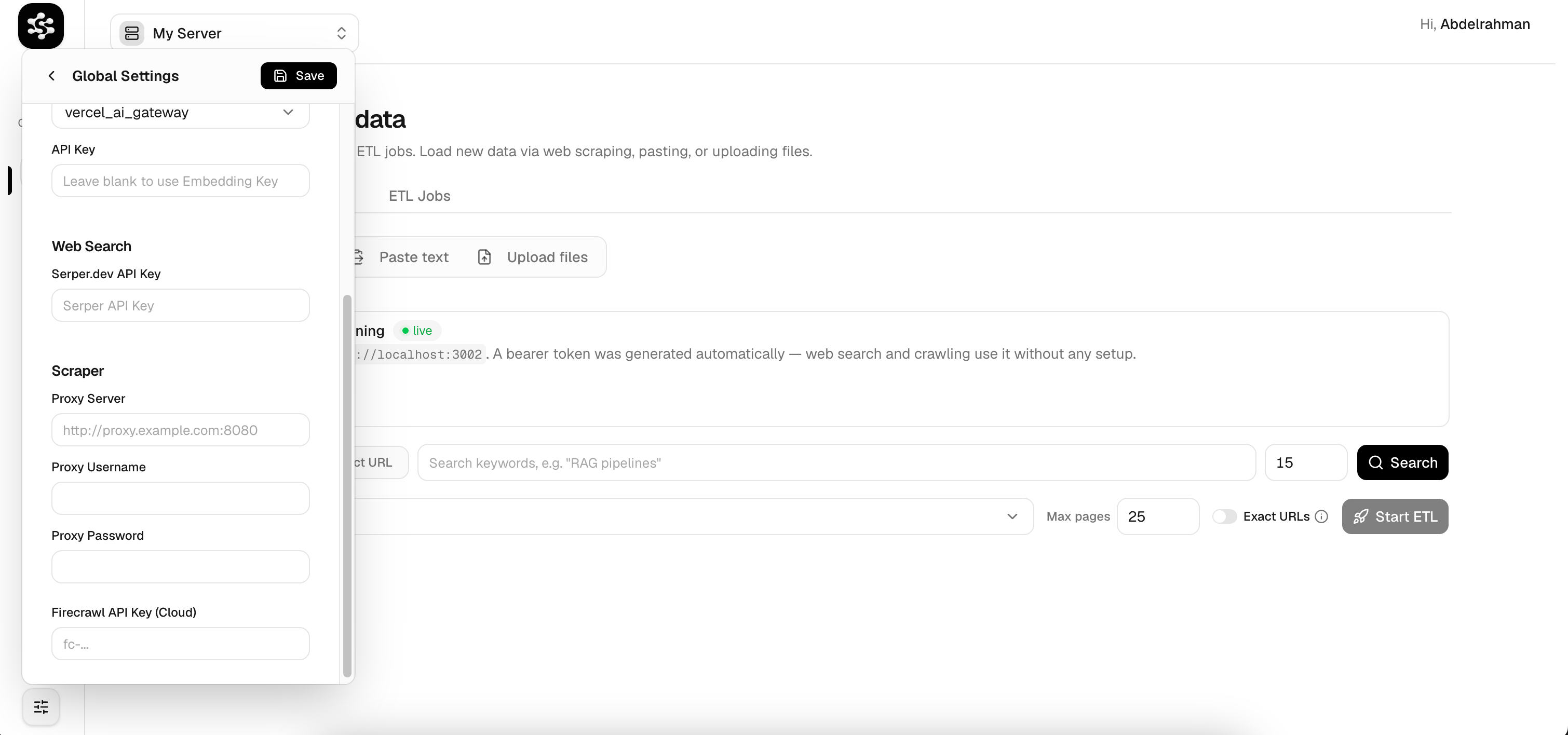
Adding Data
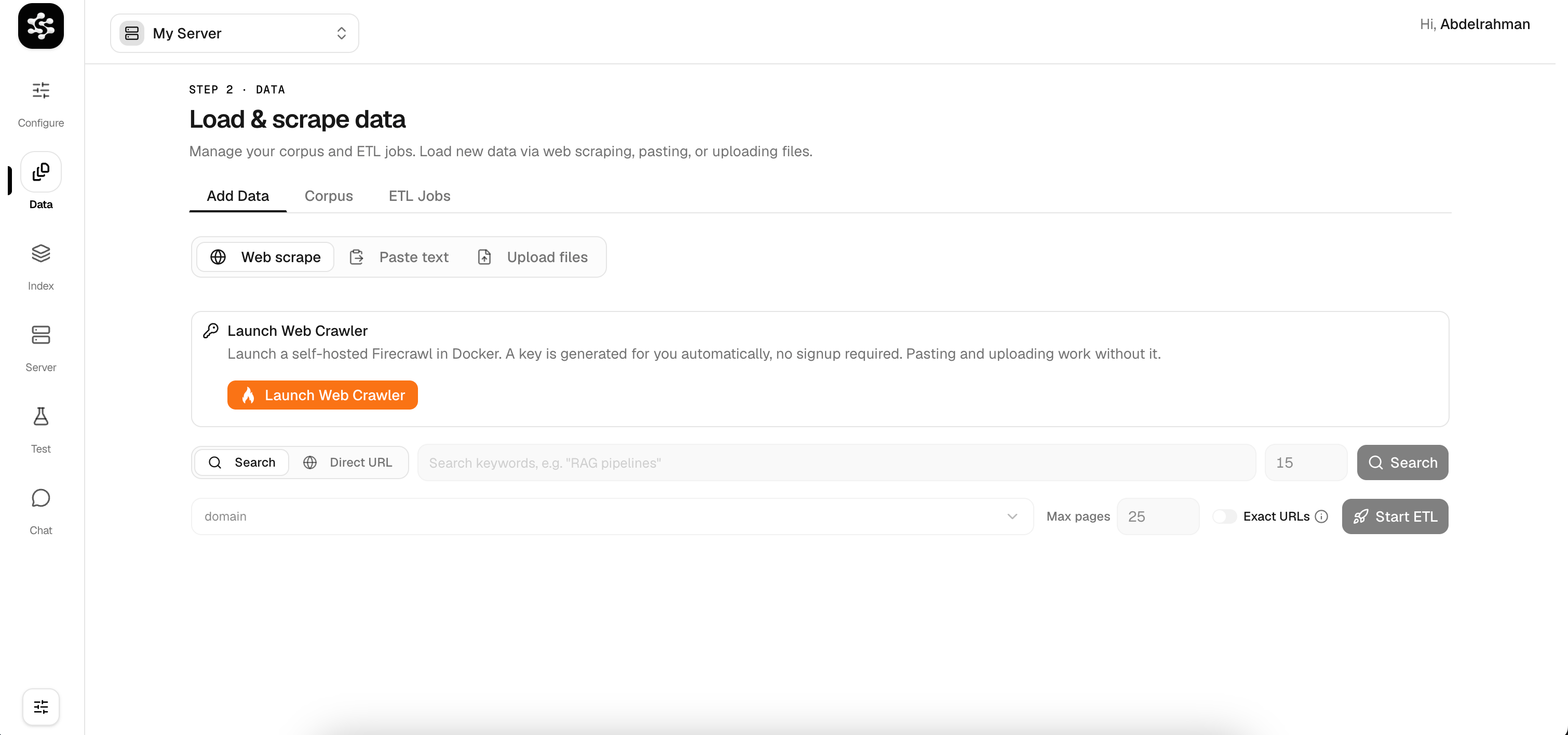
The Add Data tab is your starting point for loading content into the pipeline. You can choose from three ingestion modes:- Web Scrape: Crawl websites by keyword search or direct URL. Powered by Firecrawl, with support for self-hosted and cloud modes.
- Paste Text: Drop in raw text or a single URL for quick ingestion.
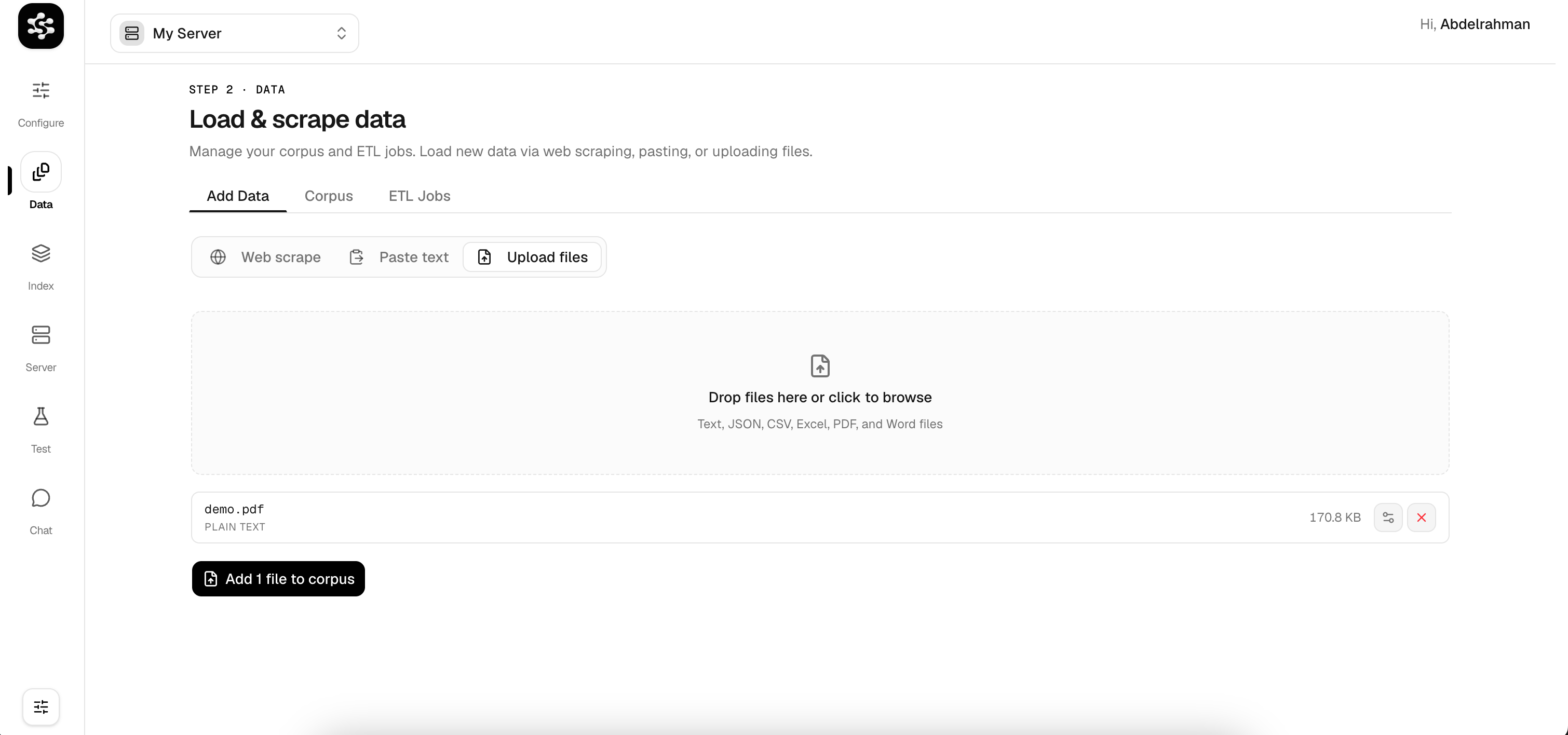
- Upload Files: Drag-and-drop files directly. Supported formats include PDF, Word (
.docx), Markdown, CSV, JSON, Excel, and plain text.
Your Corpus
Once data is ingested, every document lands in the Corpus, your central knowledge base. The corpus view shows all loaded documents with their source type (scraped, pasted, uploaded), character count, and actions to edit or delete.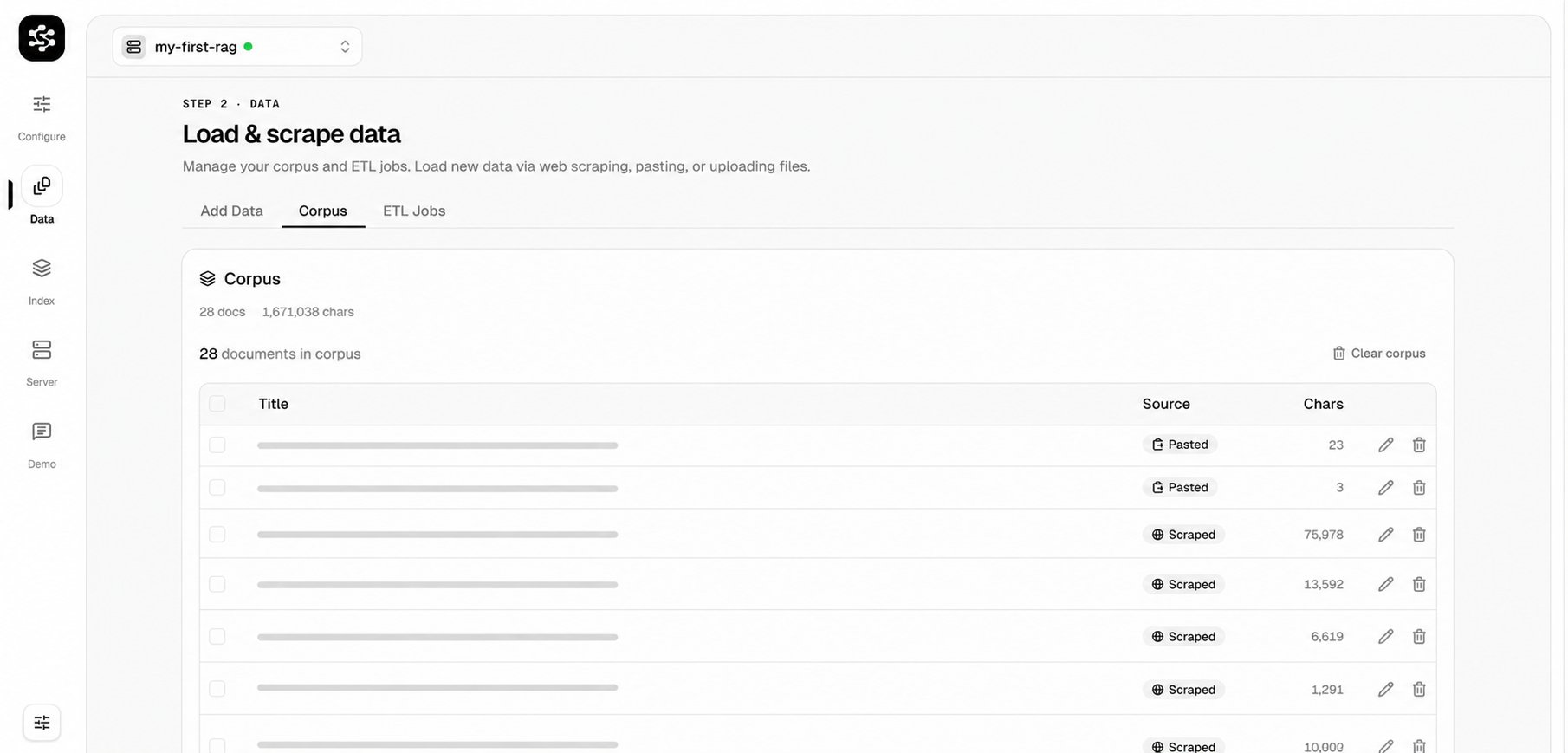
Tracking ETL Jobs
Large scraping and upload operations run as background ETL Jobs. The ETL Jobs tab gives you real-time visibility into every job, including target count, pages processed, and completion status.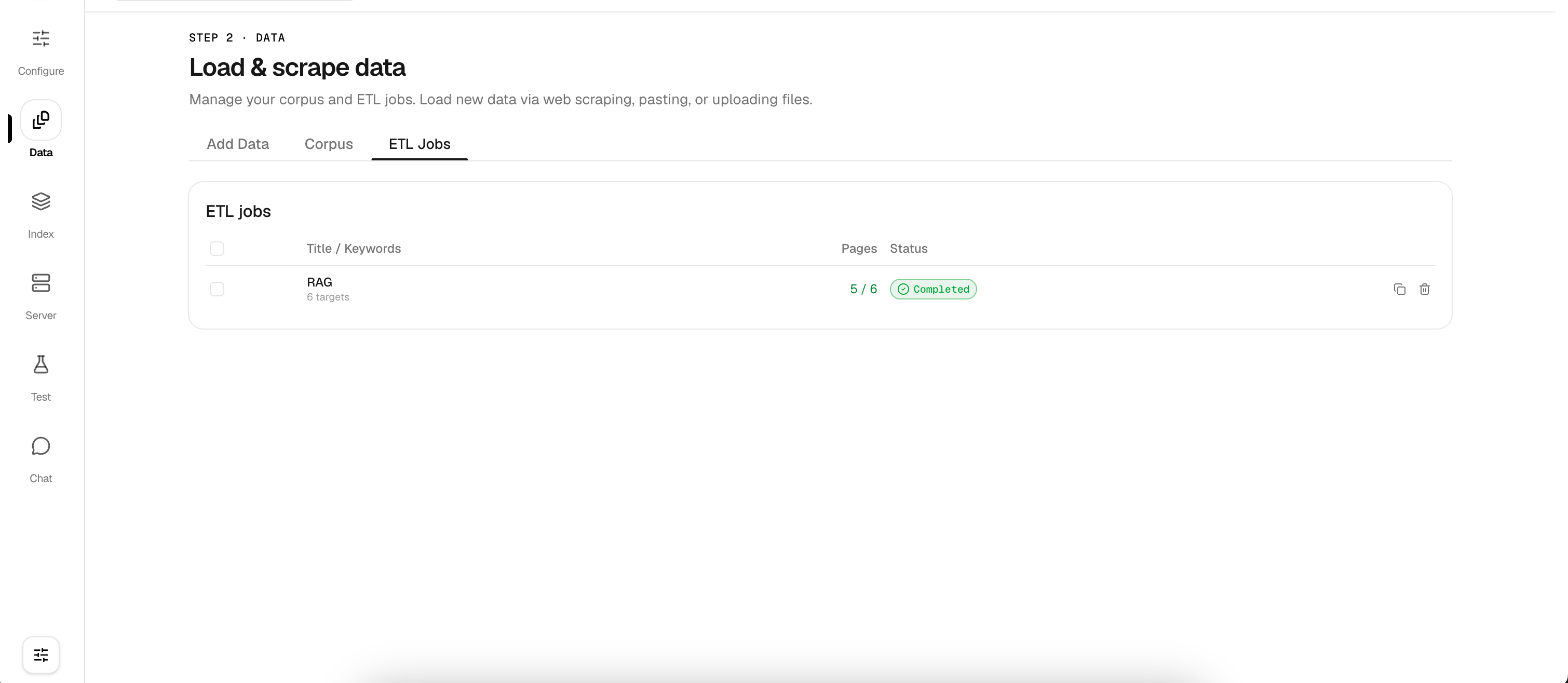
Scraping Configuration
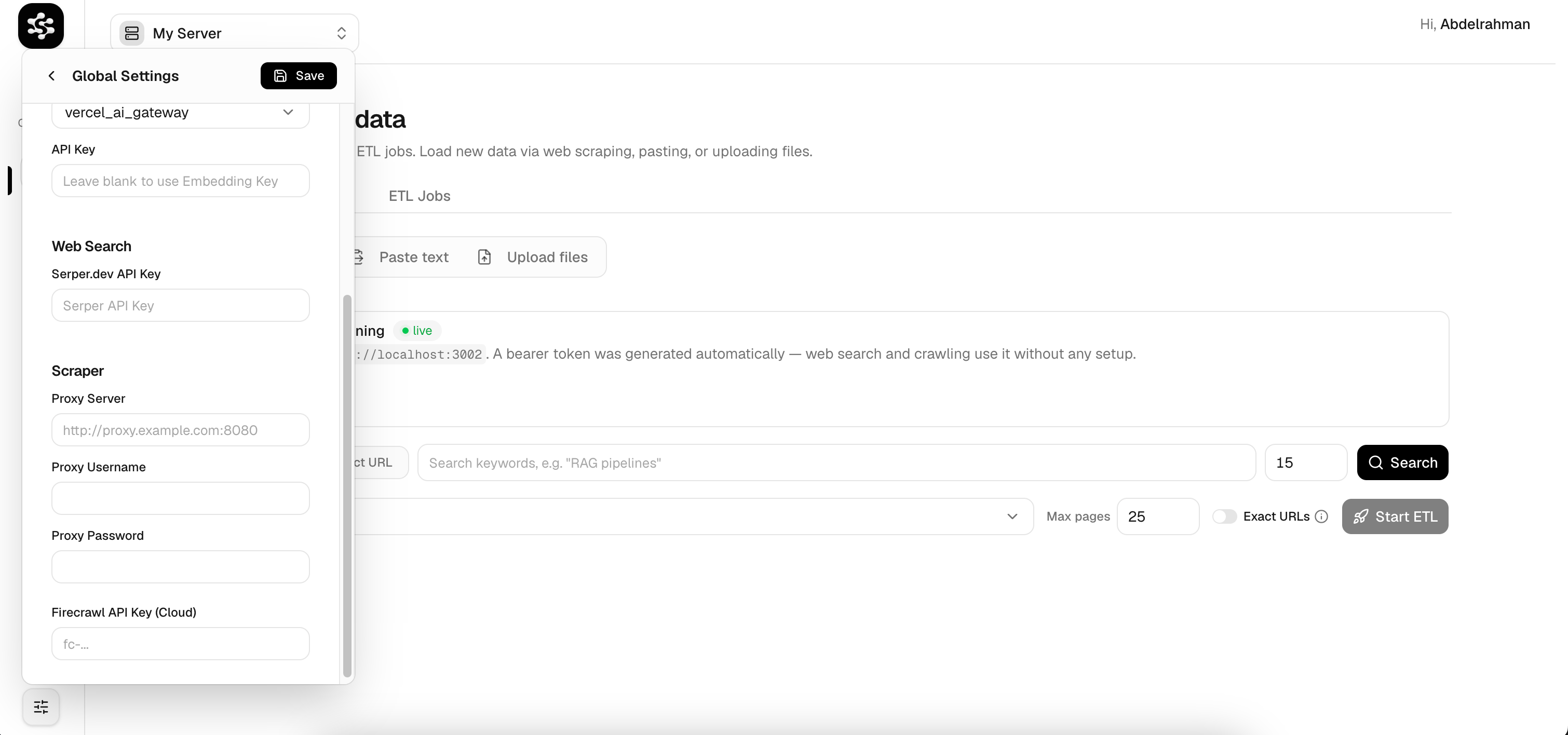
LarkupRAG supports both self-hosted and cloud-hosted scraping. You can configure everything from the Global Settings panel, no.env editing required.
Self-Hosted Firecrawl
Click Launch Web Crawler in the Add Data tab to spin up a local Firecrawl instance inside Docker. A bearer token is auto-generated, you can start scraping immediately with zero signup.Cloud API Keys
If you prefer the hosted Firecrawl or Serper.dev services, enter your API keys in Global Settings:- Firecrawl API Key (Cloud): for cloud-based web crawling
- Serper.dev API Key: for programmatic Google search ingestion
Proxy Settings
For organizations that route traffic through a proxy (e.g., for rate-limit bypass or secure scraping), the settings panel exposes proxy configuration fields:- Proxy Server: e.g.
http://proxy.example.com:8080 - Proxy Username
- Proxy Password