> ## Documentation Index
> Fetch the complete documentation index at: https://larkuprag.larkup.de/docs/llms.txt
> Use this file to discover all available pages before exploring further.
# Chat with Your Data
> Turn your documents into an AI-powered chatbot in minutes, via CLI or the Web UI.
LarkupRAG gives you two ways to chat with your knowledge base: a **CLI** for developers who prefer the terminal, and a full **Web UI** with a built-in chat interface. Both paths support multiple LLM providers out of the box.
## Supported Providers
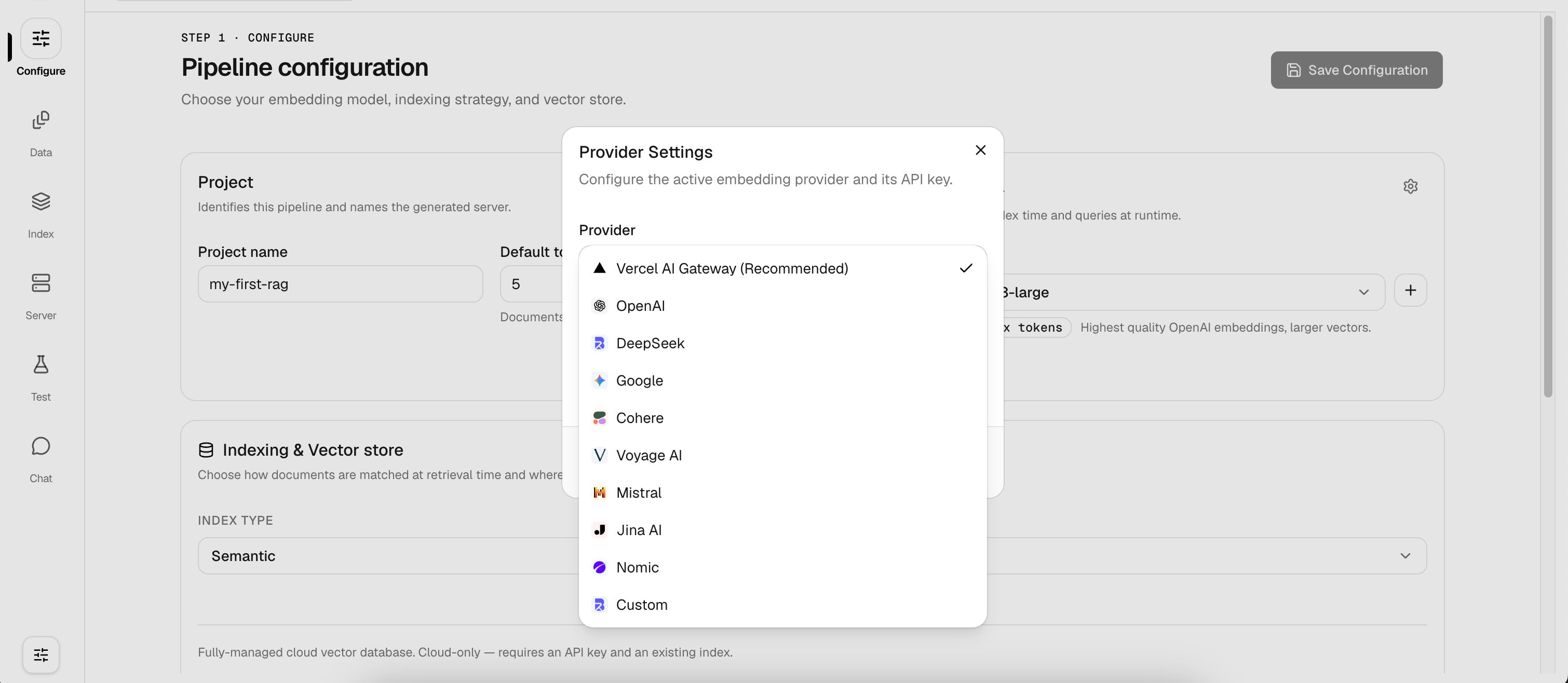
LarkupRAG isn't locked to OpenAI. You can choose from any of the following embedding and LLM providers, all configurable from the UI or CLI:
* **Vercel AI Gateway** (Recommended): unified gateway with automatic routing
* **OpenAI**: GPT-4o, GPT-4o Mini, and embedding models
* **DeepSeek**: cost-effective alternative models
* **Google**: Gemini models
* **Anthropic / Cohere / Mistral / Voyage AI / Jina AI / Nomic**
* **Custom**: bring your own OpenAI-compatible endpoint
 ***
## Getting Started
The CLI is the fastest way to go from documents to a working chatbot, no browser required.
### 1. Initialize your project
Open your terminal and create a new chatbot workspace:
```bash theme={null}
npx @larkup-rag/cli init my-first-chatbot
```
### 2. Configure your provider
Set your embedding provider and API key:
```bash theme={null}
npx @larkup-rag/cli config
```
You'll be prompted to select a provider (OpenAI, Vercel AI Gateway, DeepSeek, etc.) and paste your API key.
### 3. Add your documents
Feed documents into the pipeline: PDF, text, markdown, or URLs:
```bash theme={null}
npx @larkup-rag/cli add-doc --file /path/to/your/document.pdf
```
Run this command multiple times to add as many files as you need.
### 4. Index your data
Process and embed your documents into the vector store:
```bash theme={null}
npx @larkup-rag/cli index
```
### 5. Start chatting
Launch the interactive chat directly in your terminal:
```bash theme={null}
npx @larkup-rag/cli chat
```
The AI pulls facts directly from your indexed documents to answer questions. Type `exit` to quit.
The Web UI provides a visual, no-code experience for the entire RAG workflow, from configuration to chat.
### 1. Configure your pipeline
Open the **Configure** tab to set your project name, embedding model, and vector store. Click the provider dropdown to choose from Vercel AI Gateway, OpenAI, DeepSeek, Google, and more.
***
## Getting Started
The CLI is the fastest way to go from documents to a working chatbot, no browser required.
### 1. Initialize your project
Open your terminal and create a new chatbot workspace:
```bash theme={null}
npx @larkup-rag/cli init my-first-chatbot
```
### 2. Configure your provider
Set your embedding provider and API key:
```bash theme={null}
npx @larkup-rag/cli config
```
You'll be prompted to select a provider (OpenAI, Vercel AI Gateway, DeepSeek, etc.) and paste your API key.
### 3. Add your documents
Feed documents into the pipeline: PDF, text, markdown, or URLs:
```bash theme={null}
npx @larkup-rag/cli add-doc --file /path/to/your/document.pdf
```
Run this command multiple times to add as many files as you need.
### 4. Index your data
Process and embed your documents into the vector store:
```bash theme={null}
npx @larkup-rag/cli index
```
### 5. Start chatting
Launch the interactive chat directly in your terminal:
```bash theme={null}
npx @larkup-rag/cli chat
```
The AI pulls facts directly from your indexed documents to answer questions. Type `exit` to quit.
The Web UI provides a visual, no-code experience for the entire RAG workflow, from configuration to chat.
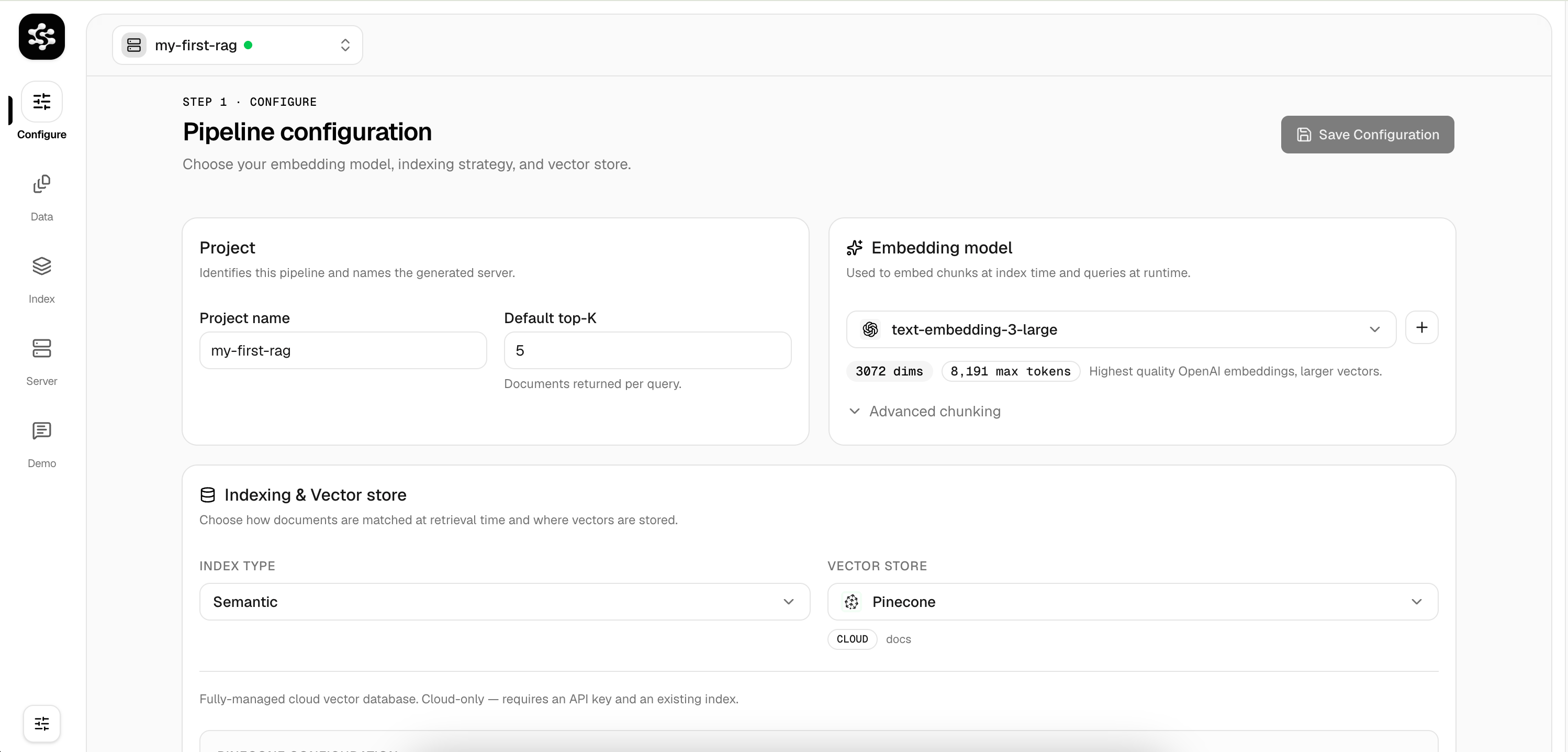
### 1. Configure your pipeline
Open the **Configure** tab to set your project name, embedding model, and vector store. Click the provider dropdown to choose from Vercel AI Gateway, OpenAI, DeepSeek, Google, and more.
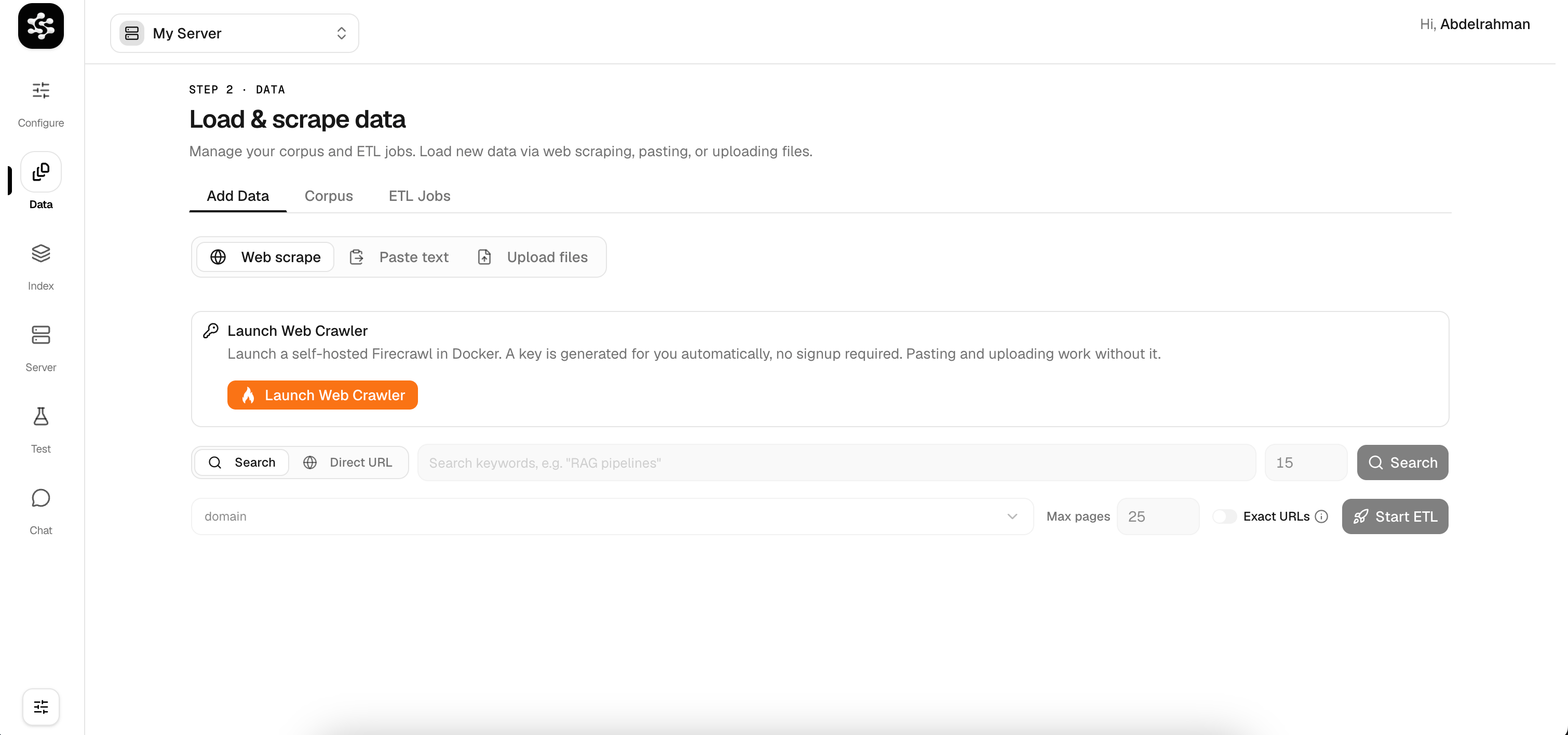
 ### 2. Load your data
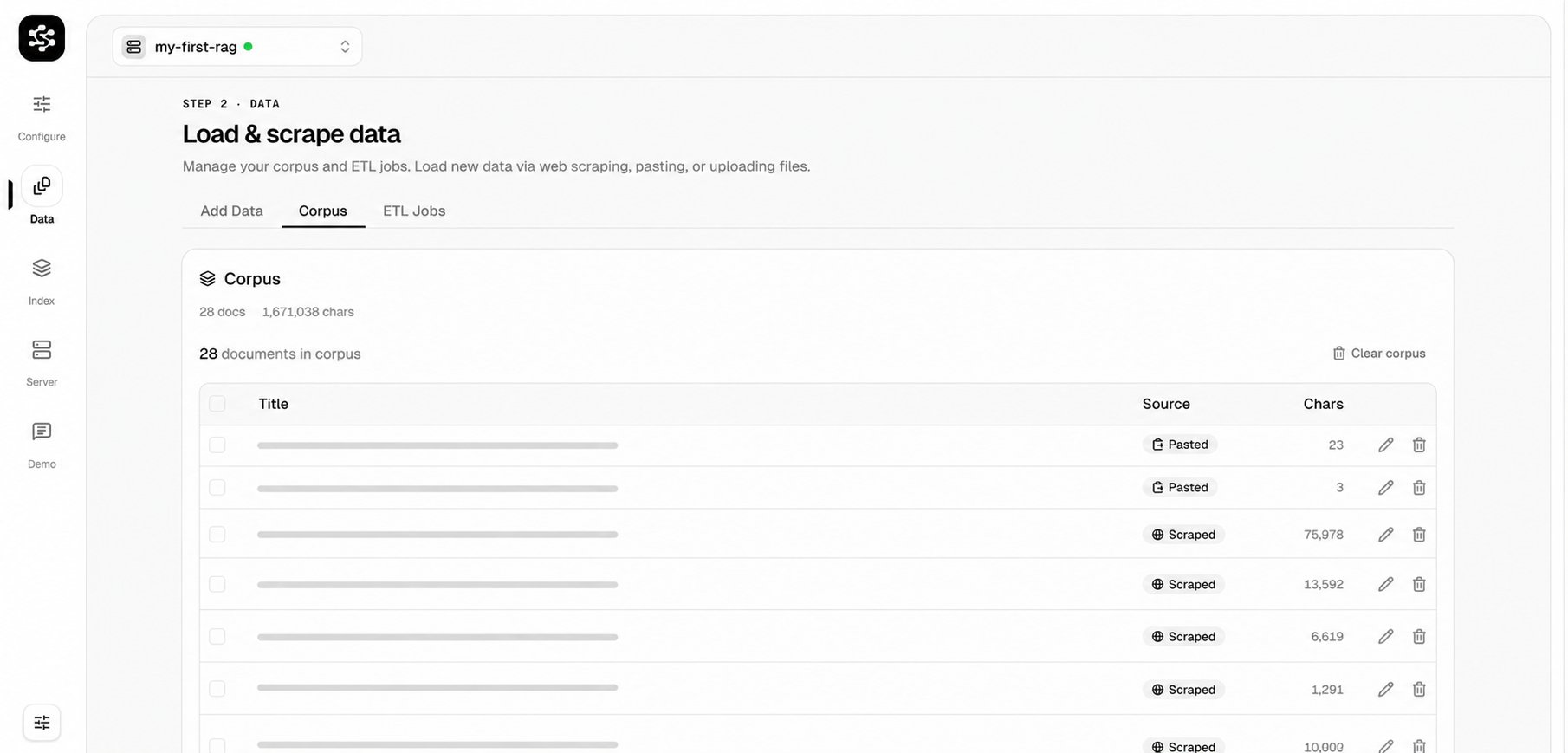
Switch to the **Data** tab. You can web-scrape entire domains, paste raw text, or upload files (PDF, Word, JSON, CSV, and more). All ingestion jobs are tracked in the **ETL Jobs** tab.
### 2. Load your data
Switch to the **Data** tab. You can web-scrape entire domains, paste raw text, or upload files (PDF, Word, JSON, CSV, and more). All ingestion jobs are tracked in the **ETL Jobs** tab.
 ### 3. Test your pipeline
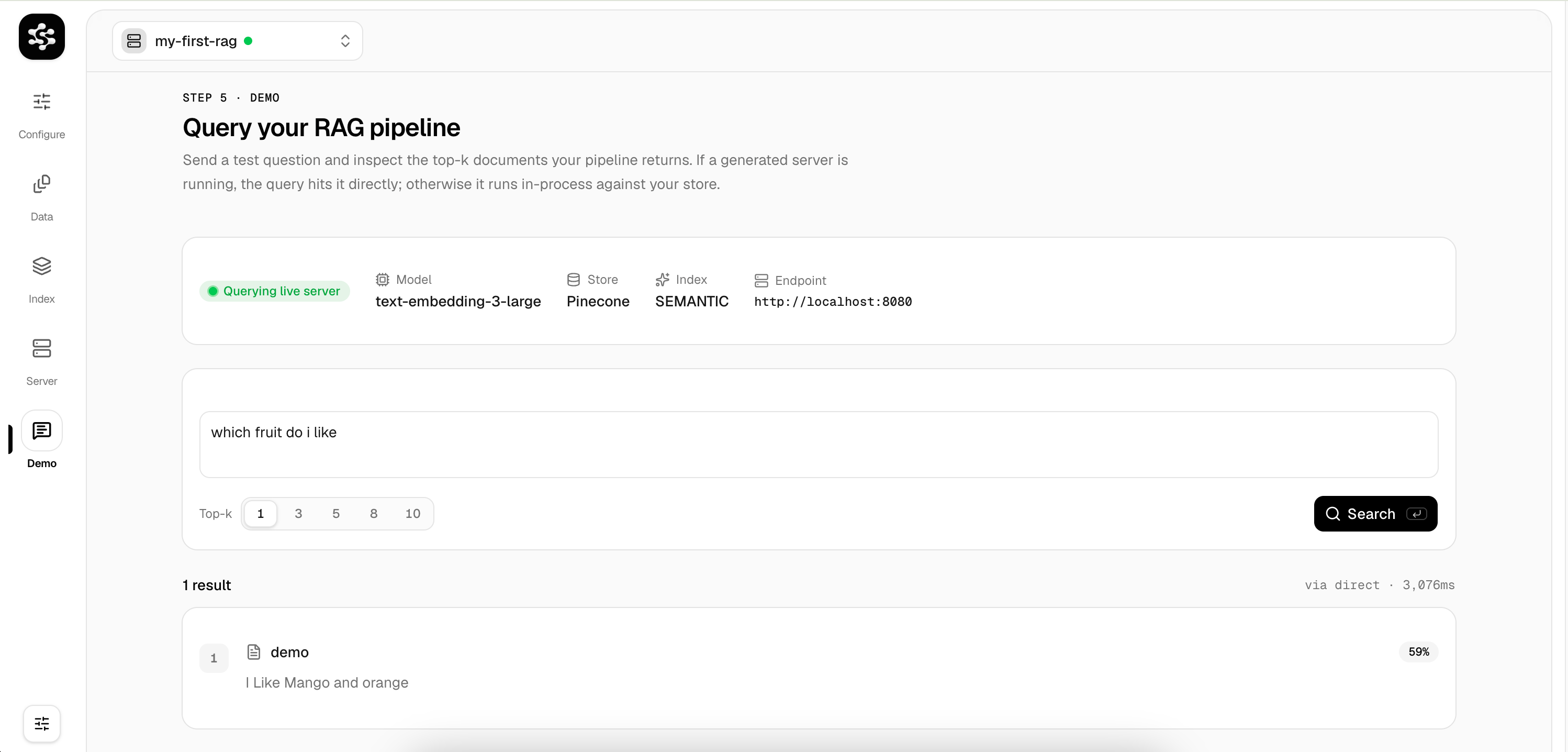
Use the **Demo** tab to send test queries against your indexed data. See matching documents, similarity scores, and response latency in real time.
### 3. Test your pipeline
Use the **Demo** tab to send test queries against your indexed data. See matching documents, similarity scores, and response latency in real time.
 ### 4. Chat with your knowledge base
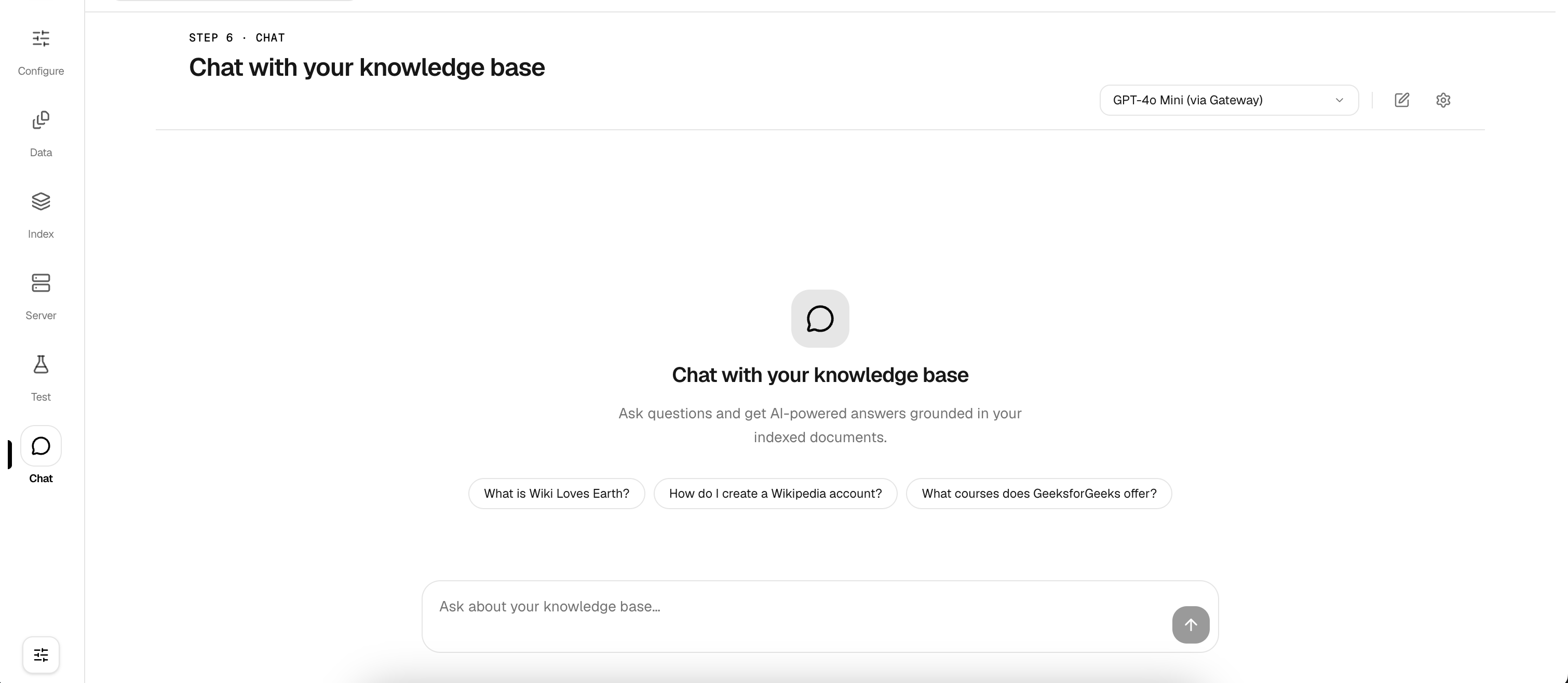
Open the **Chat** tab for a full conversational interface. Select your LLM model from the dropdown (e.g., GPT-4o Mini via Gateway) and start asking questions grounded in your documents.
### 4. Chat with your knowledge base
Open the **Chat** tab for a full conversational interface. Select your LLM model from the dropdown (e.g., GPT-4o Mini via Gateway) and start asking questions grounded in your documents.
 ***
## Vector Store Options
LarkupRAG supports multiple vector store backends. Choose the one that fits your deployment:
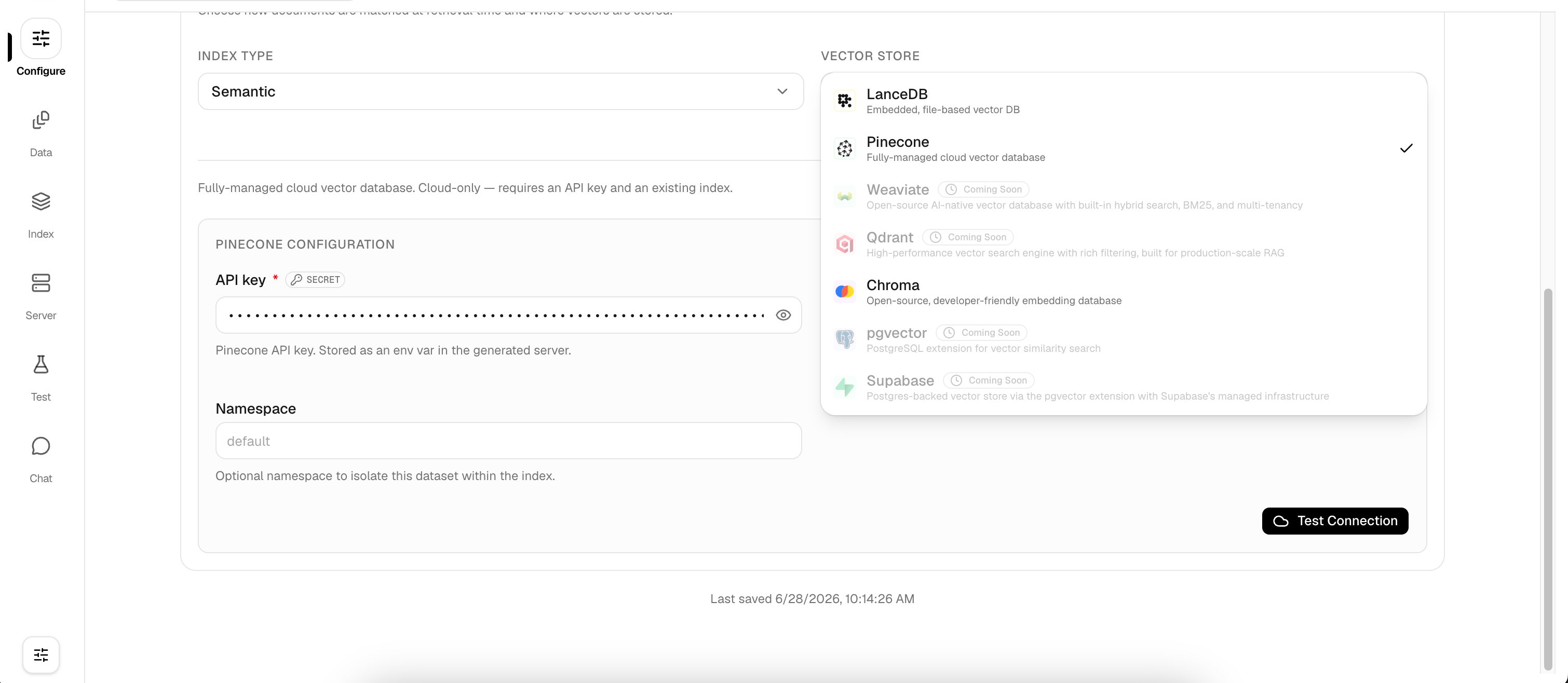
* **LanceDB**: embedded, file-based (great for local/offline use)
* **Pinecone**: fully-managed cloud vector database
* **Chroma**: open-source, developer-friendly
* **Weaviate / Qdrant / pgvector / Supabase**: coming soon
***
## Vector Store Options
LarkupRAG supports multiple vector store backends. Choose the one that fits your deployment:
* **LanceDB**: embedded, file-based (great for local/offline use)
* **Pinecone**: fully-managed cloud vector database
* **Chroma**: open-source, developer-friendly
* **Weaviate / Qdrant / pgvector / Supabase**: coming soon