> ## Documentation Index
> Fetch the complete documentation index at: https://larkuprag.larkup.de/docs/llms.txt
> Use this file to discover all available pages before exploring further.
# Configuration Reference
> Select your RAG strategy, vector stores, and embedding models.
The Configuration stage defines the backbone of your RAG workspace. Before diving into the tools, it's crucial to understand the different retrieval strategies and how to configure them in LarkupRAG.
## Retrieval Strategies
When configuring your RAG pipeline, you can choose from different retrieval strategies depending on your use case:
**Semantic Search** uses embedding models to understand the *meaning* and *context* of a query, rather than just exact keywords. It is excellent for answering natural language questions where the exact terminology might differ between the user and the documents.
**Lexical Search** (like BM25) relies on exact keyword matching. It is highly effective for finding specific names, IDs, or domain-specific jargon that might be missed by semantic embeddings.
**Hybrid Search** combines both Semantic and Lexical search, often using a cross-encoder to rerank the results. This offers the best of both worlds, ensuring both contextual understanding and keyword accuracy. *(Advanced configuration for Hybrid search can be done via the API).*
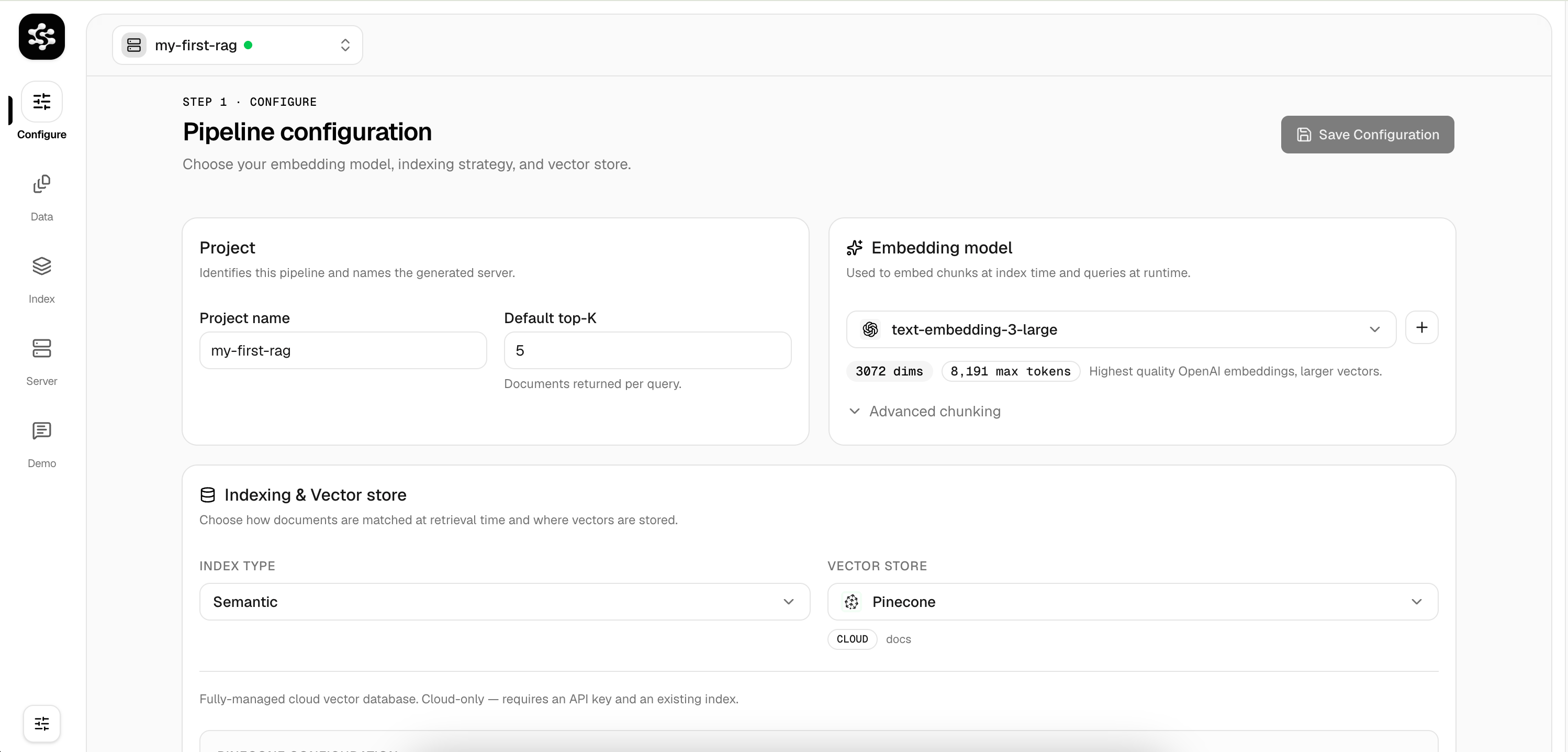 ## Embedding Models & API Keys
Embedding models create the vector representations of your text. LarkupRAG makes it simple to integrate various providers. To use a model, you must configure its provider and supply a valid API Key.
Native support for the latest OpenAI models like `text-embedding-3-small` and `text-embedding-3-large`.
Easily point LarkupRAG to any third-party or custom endpoint that adheres to the OpenAI API specification (e.g., vLLM, Together AI, Anyscale).
Run embedding models locally via Hugging Face or Ollama. Perfect for complete privacy and air-gapped deployments.
### Setup Your API Key
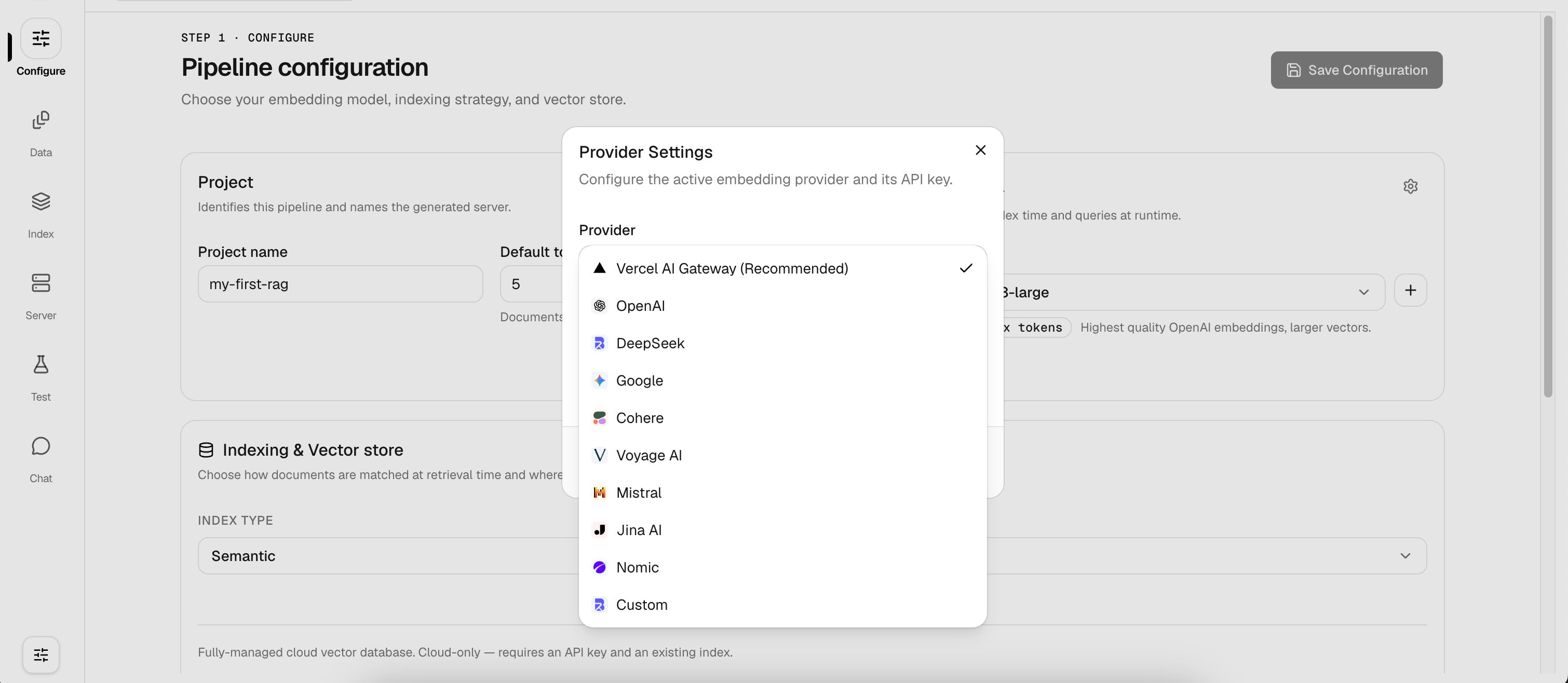
Click the **Settings** icon next to "Embedding model" to open the Provider Settings modal. Here, you can:
1. **Select a Provider**: Choose from providers like OpenAI, DeepSeek, Google, Cohere, Mistral, Voyage, or Custom.
2. **Set the API Key**: Securely input your API key for the chosen provider.
3. **Test Connection**: LarkupRAG will verify the connection to the provider before saving.
> \[!TIP]
> **Recommended**: We highly recommend using the **Vercel AI Gateway** provider. It acts as a unified proxy, allowing you to seamlessly route requests to multiple AI providers using a single Gateway API key, while providing built-in caching and rate limiting.
## Embedding Models & API Keys
Embedding models create the vector representations of your text. LarkupRAG makes it simple to integrate various providers. To use a model, you must configure its provider and supply a valid API Key.
Native support for the latest OpenAI models like `text-embedding-3-small` and `text-embedding-3-large`.
Easily point LarkupRAG to any third-party or custom endpoint that adheres to the OpenAI API specification (e.g., vLLM, Together AI, Anyscale).
Run embedding models locally via Hugging Face or Ollama. Perfect for complete privacy and air-gapped deployments.
### Setup Your API Key
Click the **Settings** icon next to "Embedding model" to open the Provider Settings modal. Here, you can:
1. **Select a Provider**: Choose from providers like OpenAI, DeepSeek, Google, Cohere, Mistral, Voyage, or Custom.
2. **Set the API Key**: Securely input your API key for the chosen provider.
3. **Test Connection**: LarkupRAG will verify the connection to the provider before saving.
> \[!TIP]
> **Recommended**: We highly recommend using the **Vercel AI Gateway** provider. It acts as a unified proxy, allowing you to seamlessly route requests to multiple AI providers using a single Gateway API key, while providing built-in caching and rate limiting.
 ## Vector Stores
LarkupRAG abstracts vector store interactions. You can swap providers seamlessly without altering your data or queries.
### Default Vector Store
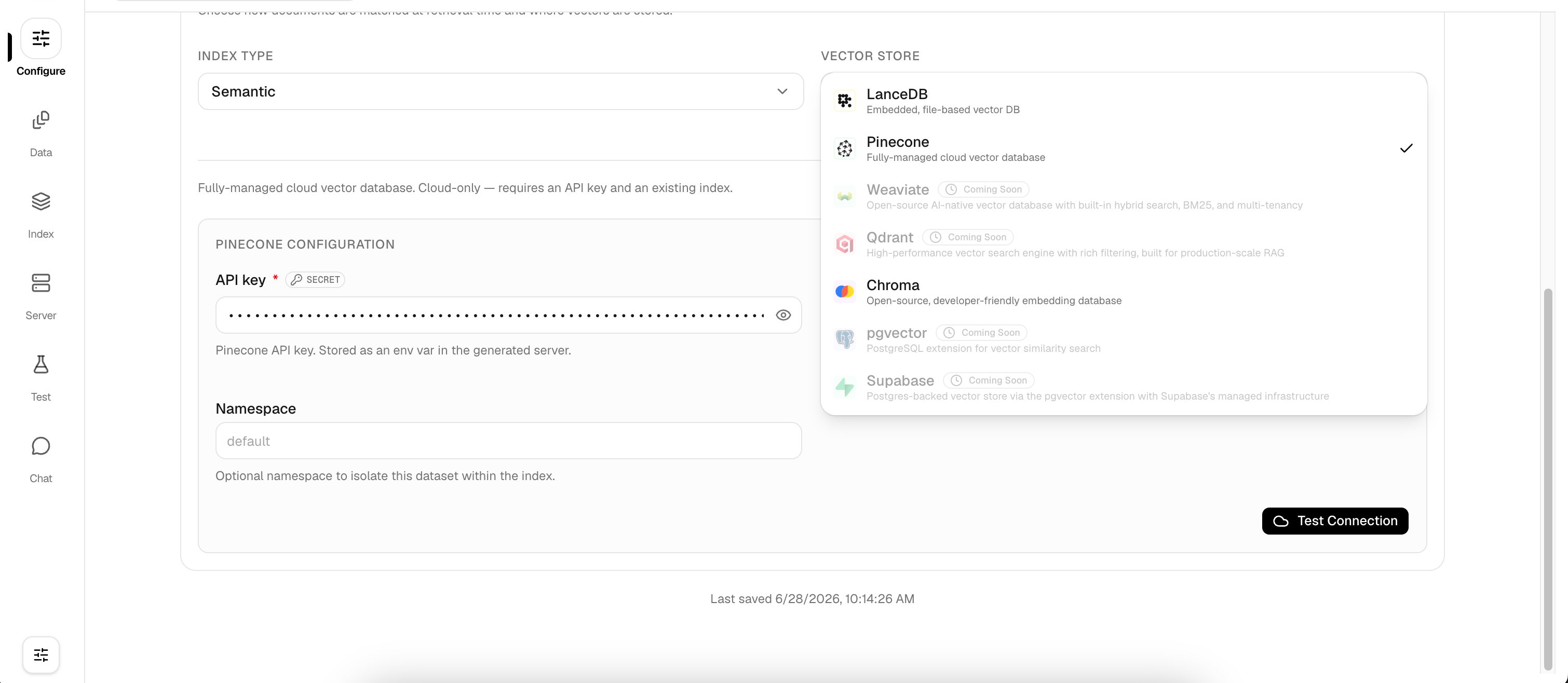
By default, LarkupRAG comes with **LanceDB**. It is an embedded, ultra-fast vector database that runs locally without any external dependencies. It works right out of the box.
### Requires Separate Installation
When integrating external vector stores, ensure their respective dependencies or server instances are running and configured before connecting.
A fully managed, cloud-native vector database. Requires you to input your Pinecone API key and environment.
A scalable vector search engine. **Installation:** You'll need to run Qdrant via Docker or use Qdrant Cloud before pointing LarkupRAG to your cluster URL.
An AI-native open-source embedding database. **Installation:** Run the Chroma server locally or use a managed service and configure the URL in LarkupRAG.
### Coming Soon
The following vector stores are actively being added to LarkupRAG:
* **Milvus**
* **Weaviate**
* **pgvector (PostgreSQL)**
## Vector Stores
LarkupRAG abstracts vector store interactions. You can swap providers seamlessly without altering your data or queries.
### Default Vector Store
By default, LarkupRAG comes with **LanceDB**. It is an embedded, ultra-fast vector database that runs locally without any external dependencies. It works right out of the box.
### Requires Separate Installation
When integrating external vector stores, ensure their respective dependencies or server instances are running and configured before connecting.
A fully managed, cloud-native vector database. Requires you to input your Pinecone API key and environment.
A scalable vector search engine. **Installation:** You'll need to run Qdrant via Docker or use Qdrant Cloud before pointing LarkupRAG to your cluster URL.
An AI-native open-source embedding database. **Installation:** Run the Chroma server locally or use a managed service and configure the URL in LarkupRAG.
### Coming Soon
The following vector stores are actively being added to LarkupRAG:
* **Milvus**
* **Weaviate**
* **pgvector (PostgreSQL)**
 > **Note:** When generating the final RAG Server, *only the dependencies for the selected vector store* are bundled, keeping your deployment extremely lightweight.